
Phone:

See all of your voicemail messages in a list, who called, when, and how long, and tap the one you want to hear. No dialing in, no PIN, no listening to every message in order. Visual voicemail works in the VoipPlus app for iPhone and Android and on Cisco desk phones.
Your voicemail box lives on your company phone system, the same box you reach by dialing *97. Visual voicemail shows the contents of that box on screen. Each message appears with the caller's name and number, the date and time, and the length of the message. Unheard messages are marked so you can see at a glance what is new.
Because it is the same mailbox, everything stays in sync. A message you play or delete in the app is played or deleted on your desk phone and when you dial in too. Voicemail to email and voicemail transcription keep working alongside it.
Open the VoipPlus app and tap Voicemail at the bottom of the screen. Your messages are listed newest first. Tap the play button to listen, or use the menu next to a message for more options.
Your mailbox settings, in the app. Change your voicemail PIN, the email address your messages go to and a second notification address, whether the recording is attached to the email, whether a message is deleted once it has been emailed, and whether the date, time, and caller ID are announced before each message. No call to support needed.
Setup guides: iPhone app · Android app
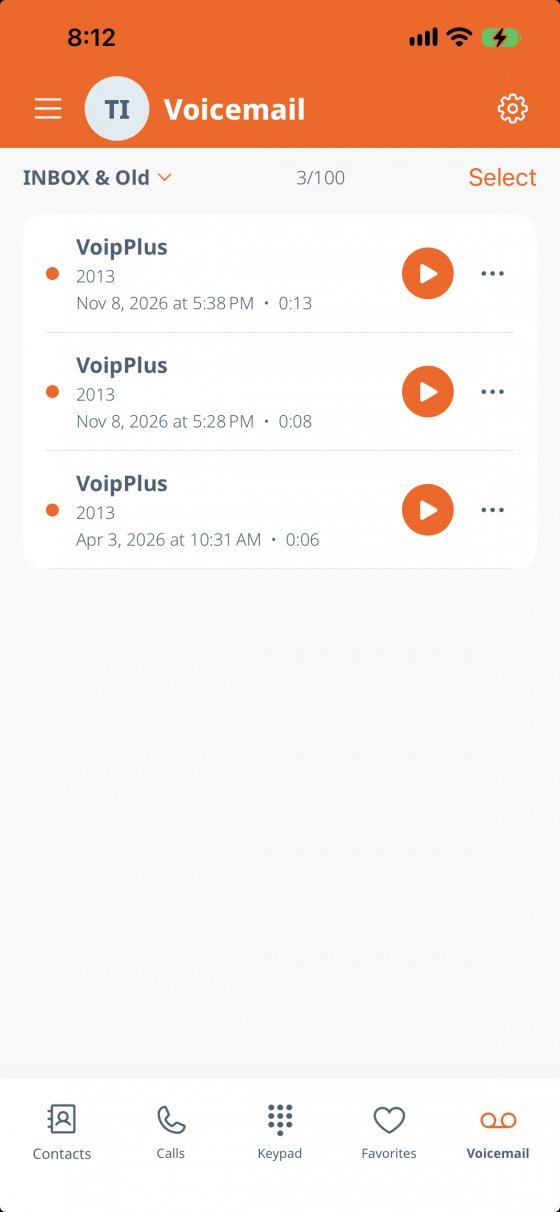
iPhone
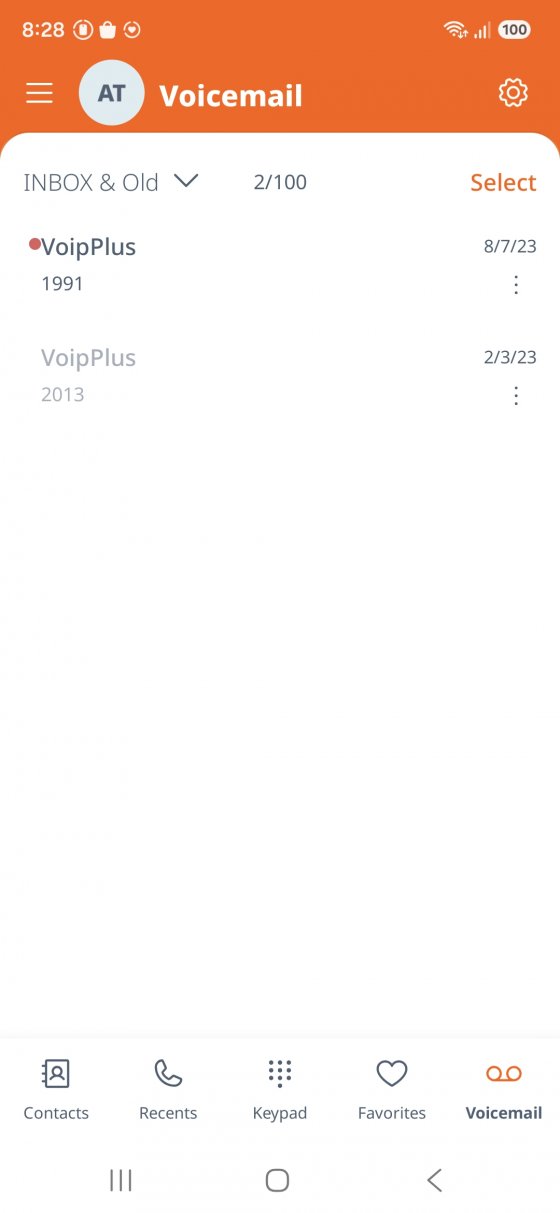
Android
Cisco SPA and Cisco 8800 series desk phones get a voicemail key that opens the same list right on the phone's screen. If your phone has more than one extension, you first pick the mailbox, with the count of new messages shown for each one.
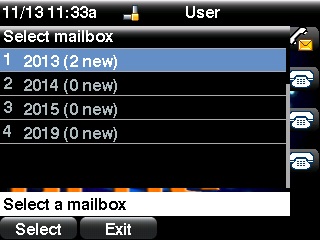
Cisco SPA 525G2, mailbox picker
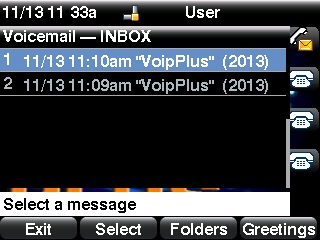
Cisco SPA 525G2, message list
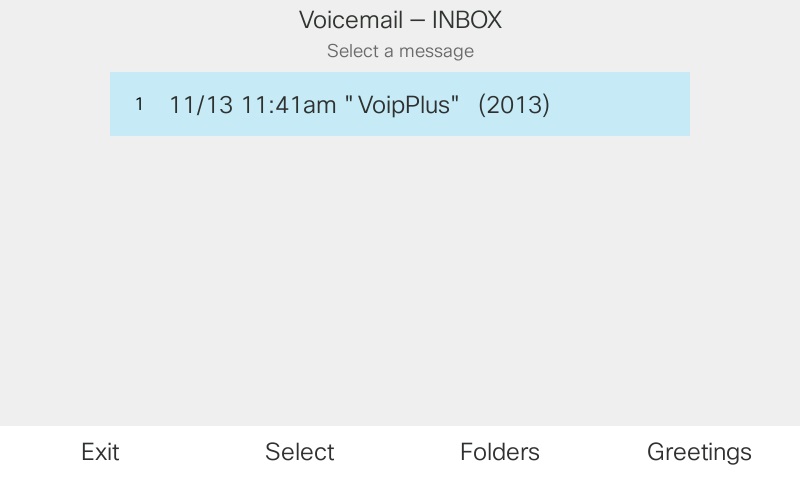
Cisco 8800 series, message list
Mailbox settings such as your PIN, email address, and notification options are changed in the VoipPlus app or by our support team, not on the desk phone.
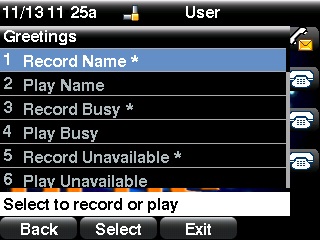
Recording greetings on the phone
Who called, when, and for how long, for every message. Decide what to hear first instead of listening in the order they arrived.
Visual voicemail opens only on your own phone, the one signed in to your extension, so there is no voicemail PIN to remember or type.
App, desk phone, dial-in, and email all use the same mailbox. Listen on your cell, and the message is already marked as heard at your desk.
No. Visual voicemail is included with every VoipPlus business phone account, in the app and on supported Cisco desk phones.
Update the VoipPlus app and open the Voicemail tab. If the app shows an Activate Visual Voicemail link, tap it once and your messages appear.
Almost everything about your mailbox: your PIN, your greetings, the email address voicemails are sent to and a second notification address, whether the audio is attached, whether messages are deleted after emailing, and whether the date, time, and caller ID are played before each message.
Yes. Dialing *97, or long-pressing 1 in the app, still works the same way, and it is the same mailbox.
Cisco SPA 300 and 500 series phones, including the SPA 525G2, and Cisco 8800 series phones such as the 8811, 8841, and 8851. Ask us about adding the voicemail key to your phones.
Yes. Voicemail to email and voicemail transcription keep working exactly as before. Visual voicemail adds a way to see and play the same messages on your phone.
No. Visual voicemail only opens on a phone that is signed in to your extension, from the network that phone is connected through. A copied link on another device will not open your mailbox.
Visual voicemail is included with every VoipPlus account. New customer or existing, ask us and we will set it up on your phones.
View pricing · Business VoIP · Hosted PBX · All Features
Hoffman Estates, IL 60169 — Serving Chicago, Schaumburg, Naperville, and all Chicagoland
Visual voicemail on Cisco desk phones is powered by our open-source FreePBX visual voicemail module, developed and maintained by our team.