

Android App

VoipPlus App for Android

Turn your Android phone into a professional business phone. Crystal-clear calls, instant setup with activation code, push notifications, and multi-line support.

Getting Started & Activation

VoipPlus connects to your company's phone system in seconds. All you need is an activation code from your administrator.
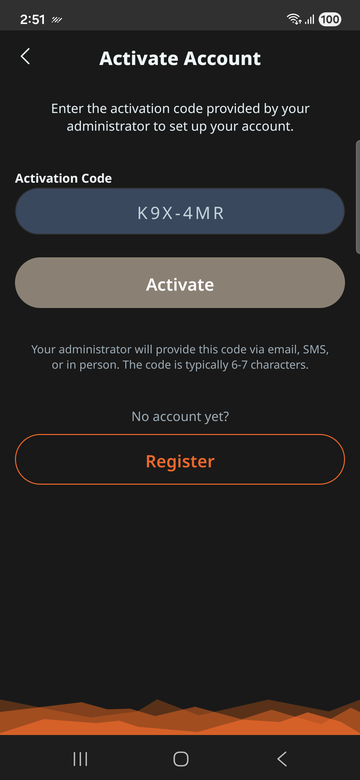
  1. Download VoipPlus from the Google Play Store and open the app.
  2. Enter your activation code. Your administrator provides this code via email, SMS, or in person. It is typically 6 characters (e.g., K9X4MR).
  3. Tap "Activate." The app securely downloads your account configuration, including your extension number, SIP credentials, and server settings.
  4. You're ready to go. Once activated, VoipPlus registers with your company's phone system and you can make and receive calls immediately.
VoipPlus Android app activation screen with code entry field
Don't have an account? Visit voipplus.net/get-started to learn about VoipPlus business phone service and sign up.

What happens behind the scenes

When you enter your activation code, VoipPlus contacts the provisioning server to retrieve your unique configuration. This includes your extension number, SIP credentials, server address, and push notification settings. Everything is configured automatically — no manual SIP setup required.

Adding Multiple Lines

VoipPlus supports multiple extensions on a single device, so you can manage more than one line from the same phone.
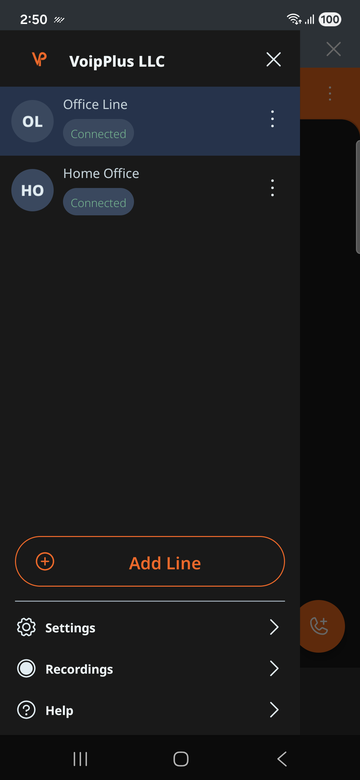
Adding a second extension

  1. Get a new activation code from your administrator for the additional extension.
  2. Open VoipPlus and navigate to Settings. Your administrator or the system may guide you through the provisioning for the new line.
  3. Enter the activation code for the second extension. VoipPlus will configure the new line alongside your existing one.
VoipPlus Android app showing multiple registered extensions

Switching between lines

When you have multiple extensions configured, you can select which line to use for outgoing calls. Incoming calls to any of your extensions will ring on your device.

Making Calls

VoipPlus offers several ways to place a call, just like a traditional desk phone.

Dial Pad

Tap the dial pad icon to enter an extension or full phone number, then tap the call button.

Contacts

Browse your phone's contact list within VoipPlus and tap a contact to call them directly.

Call History

Tap any recent call entry to call that number back instantly.

Extension Dialing

Dial a colleague's extension number (e.g., 1001) for internal calls at no cost.
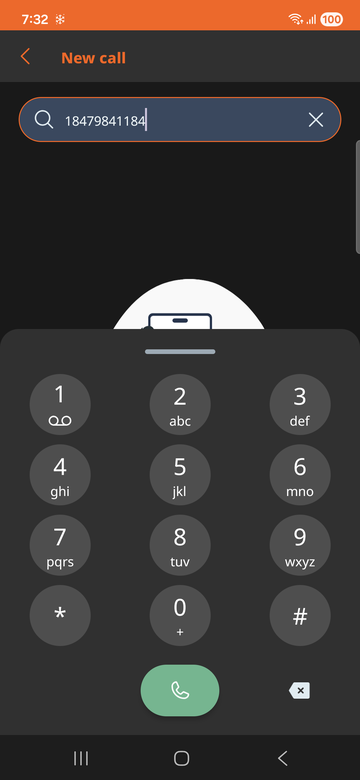
VoipPlus Android app dial pad

Receiving Calls

VoipPlus ensures you never miss a business call, even when the app isn't open.

How incoming calls work

When someone calls your extension, your company's phone system sends a push notification to your device. This wakes VoipPlus instantly and displays the incoming call screen with the caller's name or extension number.

Always Reachable

Push notifications ensure calls come through even when the app is closed or the phone screen is off.

Caller ID

See the caller's extension number or name before you answer, so you know who's calling.
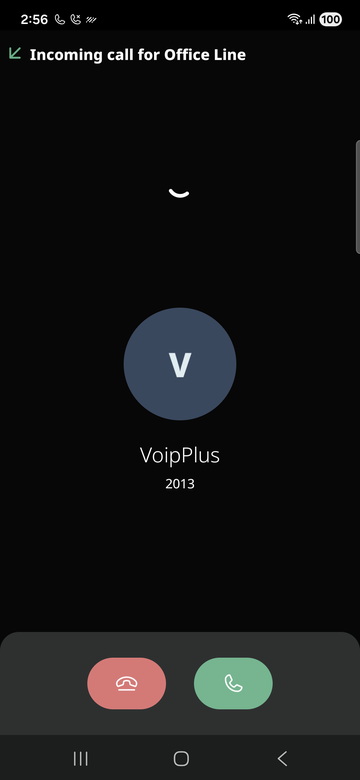
VoipPlus Android app incoming call screen with caller ID
Not receiving calls? Make sure battery optimization is disabled for VoipPlus. See Push Notifications below for details.

During a Call

VoipPlus gives you full control during active calls with familiar phone features.

Hold

Place on hold. Caller hears hold music.

Mute

Mute your mic. Tap again to unmute.

Speaker

Switch to speakerphone.

Transfer

Transfer to another number.

DTMF Tones

During a call, you can open the dial pad to send DTMF tones. This is useful for navigating automated phone menus (IVR systems), entering PINs, or interacting with conference bridges.

Call Transfer

To transfer an active call:

  1. Tap the Transfer button on the in-call screen.
  2. Enter the extension or phone number you want to transfer to.
  3. Confirm the transfer. You'll see a confirmation message once the transfer completes.

Call History

VoipPlus keeps a log of your recent calls so you can quickly review and return calls.

The Calls tab shows your recent call history, including:

  • Incoming, outgoing, and missed calls
  • The extension number or caller ID for each call
  • Call date and time

Tap any entry to call that number back immediately.
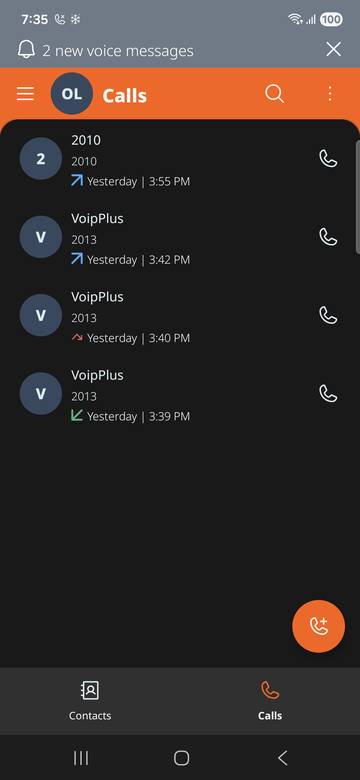
VoipPlus Android app call history showing recent calls

Voicemail

Access your voicemail directly from VoipPlus.

Checking voicemail

  1. Open the dial pad in VoipPlus.
  2. Dial *97 and tap the call button. You can also long-press the 1 key as a shortcut.
  3. Enter your voicemail PIN when prompted, then follow the voice prompts to listen to, save, or delete messages.
Tip: Your voicemail PIN is set by your administrator. If you don't know your PIN, contact your admin to have it reset.

Contacts

VoipPlus integrates with your phone's contact list for convenient calling.

Phone contacts

When you grant VoipPlus permission to access your contacts, your phone's address book is available within the app. You can search for a contact by name and tap to call them.

Contact display

When a contact calls you, VoipPlus matches the incoming caller ID with your phone's contacts to display the caller's name on the incoming call screen.

Push Notifications & Battery

Push notifications are how VoipPlus receives calls without draining your battery.

How it works

Instead of keeping a constant connection open (which would drain your battery), VoipPlus relies on push notifications from Google's Firebase Cloud Messaging (FCM). When a call comes in, your phone system sends a push notification to wake the app. VoipPlus then quickly connects and rings your phone.

Battery optimization

Android's battery optimization can interfere with push notifications by delaying or blocking them. To ensure reliable call delivery:

  1. Open your phone's Settings app.
  2. Navigate to Battery (or Apps & notifications > VoipPlus > Battery).
  3. Select Unrestricted or Don't optimize for VoipPlus.
Samsung devices: Also check Settings > Device care > Battery > App power management and add VoipPlus to the "Never sleeping apps" list.

Troubleshooting

If you're experiencing issues, try the solutions below before contacting support.

Problem Solution
No incoming calls Disable battery optimization for VoipPlus. Check that you have an active internet connection (Wi-Fi or mobile data). Restart the app.
Calls drop or have poor audio Switch to a more stable network (Wi-Fi if on mobile data, or vice versa). Move closer to your Wi-Fi router. Check that no other app is heavily using bandwidth.
Activation code not working Verify the code is entered correctly (codes are case-sensitive). Check that the code has not expired. Contact your administrator for a new code.
"Registration failed" error Ensure you are connected to the internet. If your company uses a VPN, make sure it's active. Try re-provisioning your account.
No audio during call Check that VoipPlus has microphone permission. Ensure your phone is not in Do Not Disturb mode. Try switching between speaker and earpiece.
Echo or feedback Lower the call volume. Use headphones or a Bluetooth headset. Move away from reflective surfaces.

Re-provisioning your account

If your account settings have changed or you're experiencing persistent issues, re-provisioning downloads a fresh configuration from the server:

  1. Open VoipPlus and go to Settings.
  2. Navigate to the Account section.
  3. Follow the prompts to re-enter your activation code or re-provision your account.
Note: VoipPlus also automatically refreshes its configuration periodically to keep your account settings up to date.

Sending debug logs

If support asks you to send diagnostic logs:

  1. Open VoipPlus and go to Settings > Help > Troubleshooting.
  2. Tap "Share logs".
  3. Share the generated log link via email to .

Frequently Asked Questions

Download VoipPlus from the Google Play Store, open the app, and enter the activation code provided by your administrator. The app automatically configures your account, including your extension, SIP credentials, and server settings. No manual setup is needed.

Yes. VoipPlus uses push notifications to wake the app when an incoming call arrives, even if the app is closed or the phone is in sleep mode. No battery-draining background service is required. Make sure battery optimization is disabled for VoipPlus for reliable delivery.

Yes. Your administrator can provision multiple extensions to your device. Each extension gets its own activation code. Incoming calls to any of your extensions will ring on your device.

Dial *97 from the VoipPlus dial pad to access your voicemail box. You will be prompted to enter your voicemail PIN. You can also long-press the 1 key as a shortcut.

First, check that you have an active internet connection (Wi-Fi or mobile data). Then ensure battery optimization is disabled for VoipPlus in your phone's settings. If the issue persists, try re-provisioning your account or contact your administrator.

During an active call, tap the Transfer button on the in-call screen. Enter the extension or phone number you want to transfer to, then confirm the transfer.

Open VoipPlus, go to Settings > Help > Troubleshooting, and tap "Share logs". This generates a diagnostic log link that you can send to .

Yes. VoipPlus is also available for iOS. See our iPhone app support page for setup instructions.

Quick Links


Need Help?
Call 1-847-984-1184

Also available for iPhone

iOS Setup Guide