

iOS App

VoipPlus App for iPhone & iPad

Your business phone on your iPhone. One app, all your lines, wherever you are. Native iOS call integration, push notifications, and instant activation.

Getting Started

Activate your VoipPlus account in under a minute.

When you first open VoipPlus, you will see a welcome screen. Tap Get Started to begin setup.

VoipPlus iPhone app welcome screen with Get Started button

Activate with Your Code

Your administrator will provide you with an activation code (for example: K9X-4MR). This code links your device to your business phone number and configures everything automatically.
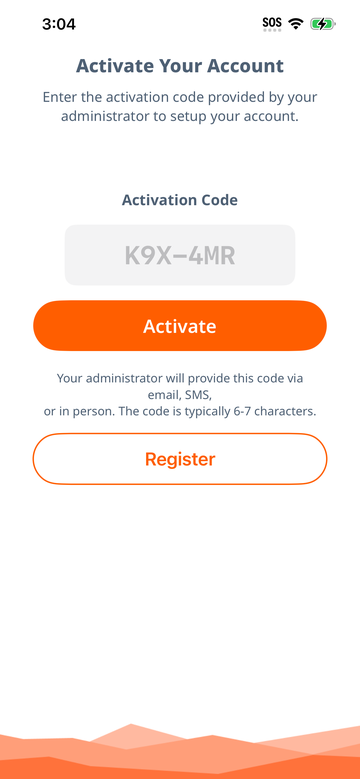
  1. Enter your activation code — Type the code into the activation field. The format is a short alphanumeric code, typically 6–7 characters.
  2. Tap Activate — The app connects to your company's provisioning server, downloads your account settings, and registers your line.
  3. You're ready — Once activated, you'll see the main screen with your phone line connected. Your phone number, voicemail, server settings, and network configuration are all set up automatically.
VoipPlus iPhone app activation code entry screen
Tip: Your administrator may also send you a deep link (a clickable URL) that opens the app and fills in the activation code automatically. Simply tap the link on your iPhone.

Home Screen Overview

After activation, VoipPlus opens to the main screen. At the bottom, you'll find the navigation bar with quick access to the core sections:

  • Contacts — Your address book and business contacts
  • Calls — Call history and the dialpad

Tap the menu icon (three horizontal lines) in the top-left corner to open the side menu. From here you can view your connected lines, add a new line, access settings, and reach this help page.
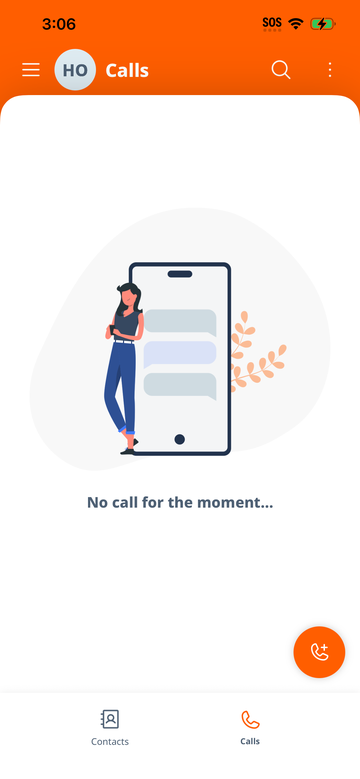
VoipPlus iPhone app main screen with navigation bar

Making Calls

Dial any number from the built-in dialpad or your contacts.

Using the Dialpad

Tap the Calls tab at the bottom of the screen. The dialpad appears at the bottom of the call history view. Type the phone number you want to call and tap the green call button.
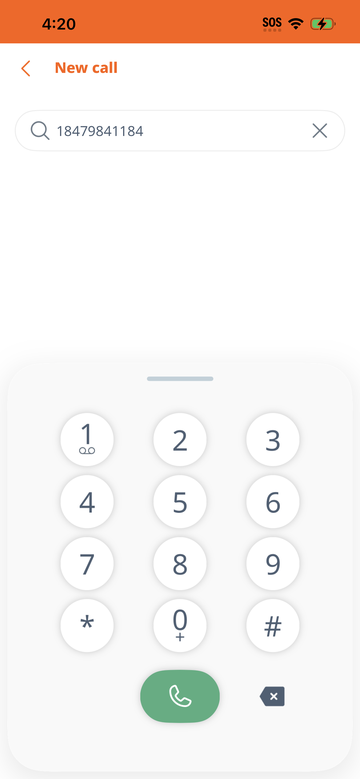
VoipPlus iPhone app dialpad

Call from Contacts

You can start a call directly from the Contacts tab. Tap a contact, then tap the phone icon next to their number.

Call from History

Tap any entry in your Call History to call that number again.

During a Call

While on an active call, you have access to on-screen controls:

  • Mute — Mute your microphone
  • Speaker — Switch to speakerphone
  • Keypad — Open the DTMF dialpad (for IVR menus, extensions, etc.)
  • Hold — Place the call on hold
  • Transfer — Transfer the call to another number
Tip: Long-press 0 on the dialpad to type a + sign for international dialing.

Receiving Calls & Push Notifications

Never miss a business call — even when the app is closed.

VoipPlus uses push notifications to ensure you receive incoming calls at all times, including when:

  • The app is running in the foreground
  • The app is in the background (you switched to another app)
  • The app is completely closed (swiped away / not running)
  • Your phone screen is locked

How It Works

When someone calls your VoipPlus number, your company's server sends a push notification to your iPhone. The app wakes up instantly and presents the incoming call using the native iOS call screen (CallKit). You'll see the caller's name or number and can answer or decline just like a regular phone call.
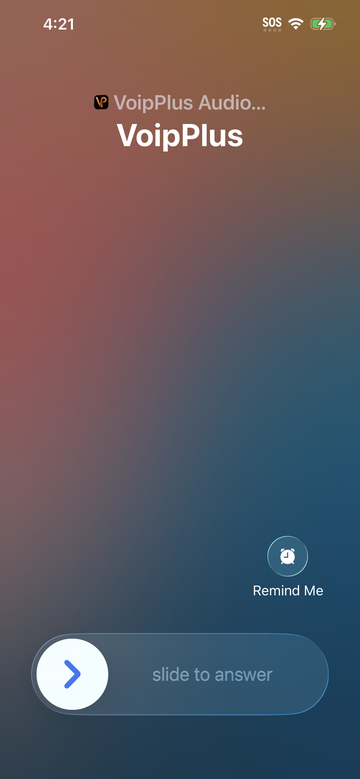
VoipPlus native iOS incoming call screen with caller ID
Important: Make sure notifications are enabled for VoipPlus in your iPhone settings. Go to Settings > Notifications > VoipPlus and ensure Allow Notifications is on.

Call Quality

VoipPlus works over Wi-Fi and mobile data (4G LTE / 5G). For the best call quality, use a stable connection. The app automatically handles network traversal (STUN/TURN/ICE) to maintain reliable audio across different network environments.

Voicemail

To check your voicemail, open the dialpad and long-press the "1" key. This immediately dials your voicemail box — the same shortcut you may be familiar with from traditional desk phones and mobile carriers.

Your voicemail extension is configured automatically during account provisioning. If long-pressing "1" does nothing, contact your administrator to ensure a voicemail extension has been assigned to your account.

Call History

The Calls tab shows a chronological list of all your incoming, outgoing, and missed calls. Each entry displays:

  • The caller or recipient's name or number
  • Call direction (incoming, outgoing, missed)
  • Date and time of the call
  • Call duration

Missed calls are highlighted so you can quickly see what you need to follow up on. A badge counter on the Calls tab shows the number of unread missed calls.
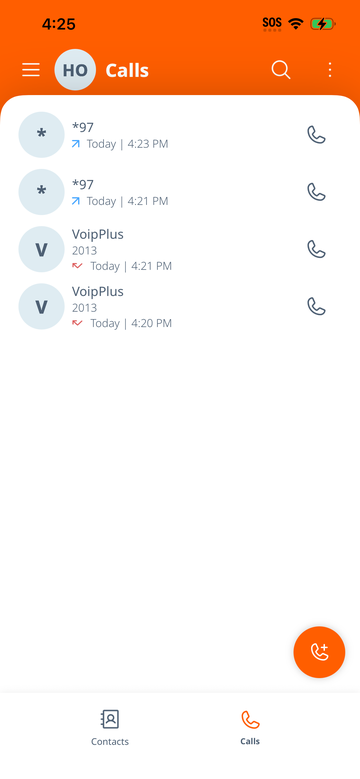
VoipPlus iPhone app call history showing recent calls

Tap any call entry to call back that number.

Contacts

The Contacts tab lets you browse, search, and manage your contact list. You can:
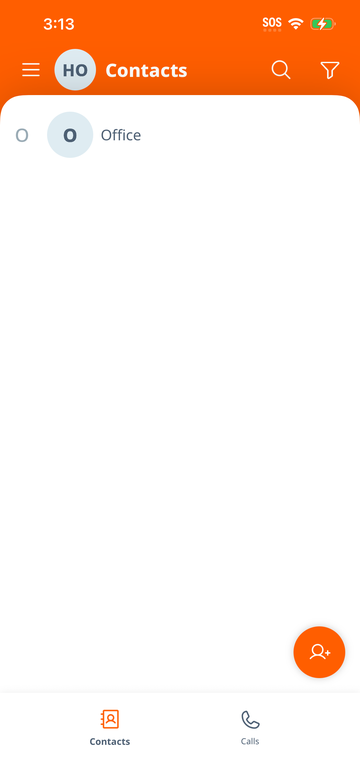
  • Search for contacts by name or number using the search bar at the top
  • Add a new contact with a name and one or more phone numbers / SIP addresses
  • Edit or delete existing contacts
  • Tap to call any contact directly from the list
VoipPlus iPhone app contacts list with search bar

Multiple Lines — Add & Switch

VoipPlus supports multiple SIP lines on a single device. This is ideal for employees who handle calls for different departments, locations, or businesses.
Add a New Line

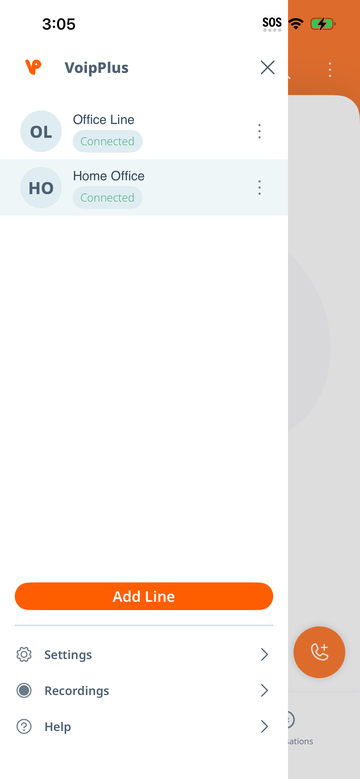
  1. Open the side menu — Tap the menu icon (three horizontal lines) in the top-left corner.
  2. Tap "Add Line" — This option appears below your existing account(s) in the side menu.
  3. Enter the activation code — Your administrator will provide a separate activation code for each additional line.
  4. Done — The new line appears in the side menu alongside your existing line(s). Both lines are active and can receive calls simultaneously.
VoipPlus iPhone app side menu with multiple lines and connection status

Switch Your Active Line

Open the side menu and tap the line you want to use as your primary outgoing line. The selected line will be used for all outgoing calls. Incoming calls ring on all connected lines regardless of which one is selected.

Connection Status

  • Green — Connected and ready
  • Orange — Connecting or refreshing
  • Red — Connection error (check your network)

Settings & Troubleshooting

Accessing Settings

Open the side menu and tap Settings. Here you can adjust audio preferences, network settings, and more.

Account Configuration Refresh

VoipPlus automatically refreshes your account configuration every 24 hours to ensure your settings stay up to date with any changes made by your administrator. This happens silently in the background.

Sharing Debug Logs

If you experience an issue and need help from your administrator or VoipPlus support:

  1. Open the side menu > Help
  2. Tap Troubleshooting — this opens the debug screen showing your app version and SDK version.
  3. Tap "Share Logs" — this uploads diagnostic logs and lets you share them with .

Common Issues

Problem Solution
"No connection" or red status Check that your phone has internet access (Wi-Fi or mobile data). Try switching between Wi-Fi and data to see if the issue is network-specific.
Not receiving calls when app is closed Ensure notifications are enabled for VoipPlus in Settings > Notifications. Also check that Background App Refresh is on in Settings > General > Background App Refresh.
Poor audio quality Move to a location with a stronger network signal. Wi-Fi is generally preferred for call quality.
Activation code not working Double-check the code with your administrator. Codes are case-insensitive but must be entered exactly. They may expire after a set period.

Frequently Asked Questions

Download VoipPlus from the App Store on your iPhone. Open the app, tap Get Started, and enter the activation code provided by your administrator. The app will automatically configure your account, including your phone number, voicemail, and server settings.

Yes. VoipPlus supports multiple SIP lines on a single device. Open the side menu, tap Add Line, and enter the activation code for your additional line. Switch between lines by tapping the desired account in the side menu.

Yes. VoipPlus uses push notifications to wake the app and ring your iPhone even when the app is fully closed or running in the background. Incoming calls appear as native phone calls through iOS CallKit, just like a regular call.

Long-press the 1 key on the dialpad to call your voicemail box directly. Your voicemail extension is automatically configured during provisioning.

VoipPlus works over Wi-Fi and mobile data (4G/5G). If your connection drops, the call will end. For the best quality, use a stable Wi-Fi connection or strong cellular signal.

Open the side menu, tap the account you want to remove, then tap Logout. This removes the line from your device. You can re-add it later with a new activation code from your administrator.

The VoipPlus app is free to download. You need an active VoipPlus account to use it. Contact your company's IT administrator or VoipPlus sales to get started.

Yes. You can install VoipPlus on your iPhone and iPad. Contact your administrator for an activation code for each device. Incoming calls will ring on all registered devices simultaneously.

Yes. VoipPlus is also available for Android. See our Android app support page for setup instructions.

Quick Links


Need Help?
Call 1-847-984-1184

Also available for Android

Android Setup Guide